

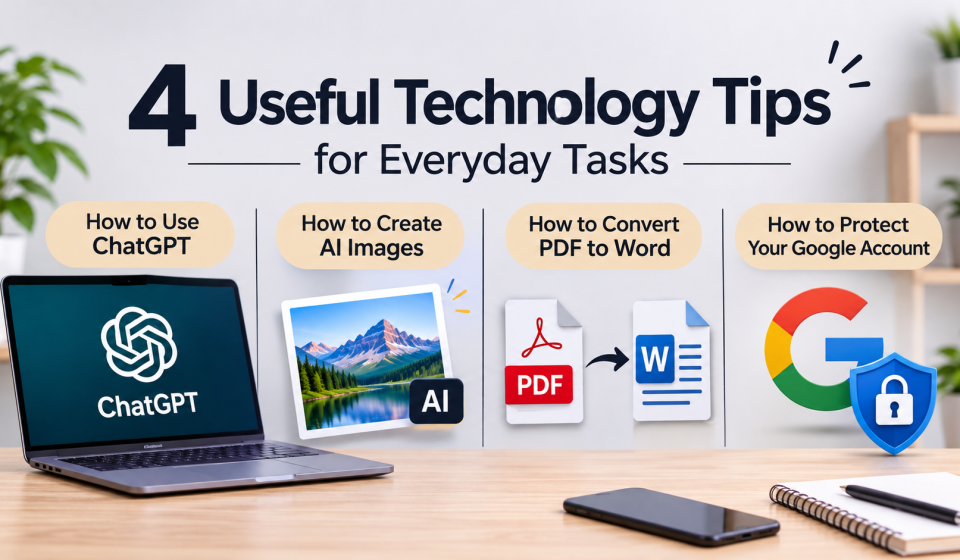

4 Useful Technology Tips: How to Use ChatGPT, Create AI Images, Convert PDF to Word, and Protect Your Google Account
4 Useful Technology Tips Technology can help you to easily complete everyday tasks whether you’re studying, working or creating digital content. It helps us find solutions to our tasks in a simple and straightforward way, sparing us from the hassle of complex processes. But many people aren’t aware how much they can do with different digital tools.
In this guide you’ll learn 4 useful tech skills such as using ChatGPT, creating AI images, converting PDF files to Word documents and securing your Google account.
1. How to Use ChatGPT Effectively
ChatGPT is an AI assistant that can help with writing, learning, research, brainstorming, and many everyday tasks. You can communicate with it using normal language instead of complicated commands.
Here are some useful ways to use ChatGPT:
- For learning: Ask it to explain difficult topics in simple language with examples.
- For writing: Use it to organize ideas, improve sentences, and create drafts.
- For planning: Ask for help creating schedules, project outlines, or task lists.
- For research: Ask for an overview of a topic and use reliable sources to verify important information.
- For problem-solving: Describe a problem clearly and ask for possible solutions.
Tips for Getting Better Answers
4 useful technology tips the quality of an answer often depends on how clearly; you explain your request. Instead of writing a short instruction such as “Write about technology,” provide more details.
For example:
“Write a beginner-friendly article about smartphone security. Use simple English, clear headings, practical tips, and a helpful introduction.”
You can also ask ChatGPT to make an explanation shorter, provide examples, or explain something step by step.
Remember that AI can sometimes provide incorrect information. Always check important facts before using them in assignments, articles, or professional work.
2. How to Create AI Images
AI image generation allows users to create pictures from written descriptions. You do not always need advanced graphic design skills to get started.
The basic process is simple:
- Choose an AI image-generation tool that supports image creation.
- Describe the image you want to create.
- Include details about the subject, background, colors, lighting, and style.
- Generate the image and review the result.
- Adjust your description if you want a different result.
- Save the image in a suitable format for your project.
How to Write a Better Image Prompt
A clear prompt helps the AI understand your idea. Try to describe the main subject first, followed by the visual style and other details.
For example:
“Create a modern workspace with a laptop, notebook, coffee cup, and soft natural lighting. Use a clean professional style, neutral colors, and a wide landscape composition.”
You can create different types of visuals, including blog illustrations, social media graphics, product concepts, and educational images.
Before publishing an AI-generated image, check its quality and make sure you have the right to use it for your intended purpose. Avoid using another person’s protected artwork or brand identity without permission.
3. How to Convert PDF to Word
PDF files are useful for sharing documents because they help preserve the original layout. However, editing a PDF can sometimes be difficult. Converting it into a Word document makes text editing easier.
Here are two simple methods.
Method 1: Using Microsoft Word
- Open Microsoft Word on your computer.
- Select the option to open a file.
- Choose the PDF document you want to convert.
- Allow Word to convert the document into an editable format.
- Review the text, images, and page layout.
- Save the document as a Word file (.docx).
Method 2: Using Google Docs
- Upload your PDF file to Google Drive.
- Open the file using Google Docs.
- Allow Google Docs to process the document.
- Review the converted content.
- Select the download option and choose Microsoft Word (.docx).
Things to Check After Conversion
PDF conversion does not always preserve the original formatting perfectly. Tables, images, fonts, and page spacing may change.
Some scanned PDFs also need text recognition (OCR) before their content can be edited.
If your document contains private information, avoid uploading it to unfamiliar online conversion websites. Use a trusted tool and check its privacy practices.
4. How to Protect Your Google Account
Your Google Account may contain important information, including emails, files, photos, and personal settings. Protecting it is an important part of staying safe online.
Here are some practical ways to improve your account security.
Use a Strong and Unique Password
Create a password that is difficult to guess and do not reuse it across different websites. A password manager can help you manage passwords securely.
Turn On Two-Step Verification
Two-Step Verification adds another security step when signing in. Depending on your account and available options, you may use a passkey, security key, or another verification method.
Review Your Account Security
Visit your Google Account security settings regularly. Check the devices signed in to your account and review recent security activity.
If you see a device or activity, you do not recognize, follow Google’s official security guidance.
Be Careful with Suspicious Links
Some messages pretend to come from Google or other trusted services to collect login information.
Before entering your password, check the website address carefully. Never share verification codes with someone who contacts you unexpectedly.
Keep Recovery Information Updated
Add a recovery email address or phone number that you can access. This can help you regain access if you have trouble signing in.
Why These Four Technology Skills Matter
Useful Technology Tips Learning to use digital tools effectively can save time and make every day work more organized. ChatGPT can support learning and writing, AI image tools can help with creative projects, PDF conversion makes document editing easier, and good account security helps protect personal information.
You do not need to learn everything at once. Start with one tool, explore its features, and practice using it for simple tasks.
Final Thoughts
Modern technology offers us many useful and simple solutions, but knowing how to apply them effectively is what truly matters. Whether you are creating content, editing documents, learning new skills, or managing online accounts, a little digital knowledge can make your daily activities easier.
Use these tools thoughtfully, verify important information, and always pay attention to online privacy and security.